

Channel Deployment Guide
Detailed guide for connecting your AI employee to Telegram or Lark.
Supported Channels
| Channel | Status | Best For |
|---|---|---|
| Telegram | Available | International users, personal use |
| Lark (Feishu) | Available | Domestic teams, enterprise use |
| WeCom (企业微信) | Available | Domestic enterprise users |
| DingTalk (钉钉) | Available | Domestic teams, no public callback needed |
| Available | International business users | |
| Discord | Coming Soon | Developer/community scenarios |
| Slack | Available | European/US enterprise users |
Tip: You can connect multiple channels simultaneously. Your AI employee responds across all connected channels. Pro plan supports Telegram + Lark dual-channel access.
Prerequisites
| Item | Description |
|---|---|
| COCO Account | Registered and paid/trial active |
| Channel Account | Your Telegram or Lark platform account |
| ~10 minutes | Time to complete deployment |
You do NOT need:
- Any servers or technical infrastructure
- Any coding skills
- API keys or developer accounts
- Any technical knowledge
Option A: Telegram Deployment (Recommended for international users)
Estimated time: 5-8 minutes
Step 1: Create a Telegram Bot
- Open Telegram, search for @BotFather (official bot manager)
- Send
/newbotcommand - Enter your Bot display name (e.g.,
My COCO AI) - Enter your Bot username (must end with
bot, e.g.,my_coco_ai_bot) - BotFather returns a Bot Token (format:
110201543:AAHdqTcvCH1vGWJxfSeofSAs0K5PALDsaw) - Copy and save this Token — you'll need it next
Important: The Bot Token is your bot's unique credential. Do not share it with others.
Step 2: Connect in COCO Dashboard
- Log into COCO Dashboard
- Open the Channels page and find the Telegram card
- Paste the Bot Token from Step 1
- Click Connect
- System automatically validates the Token and completes connection
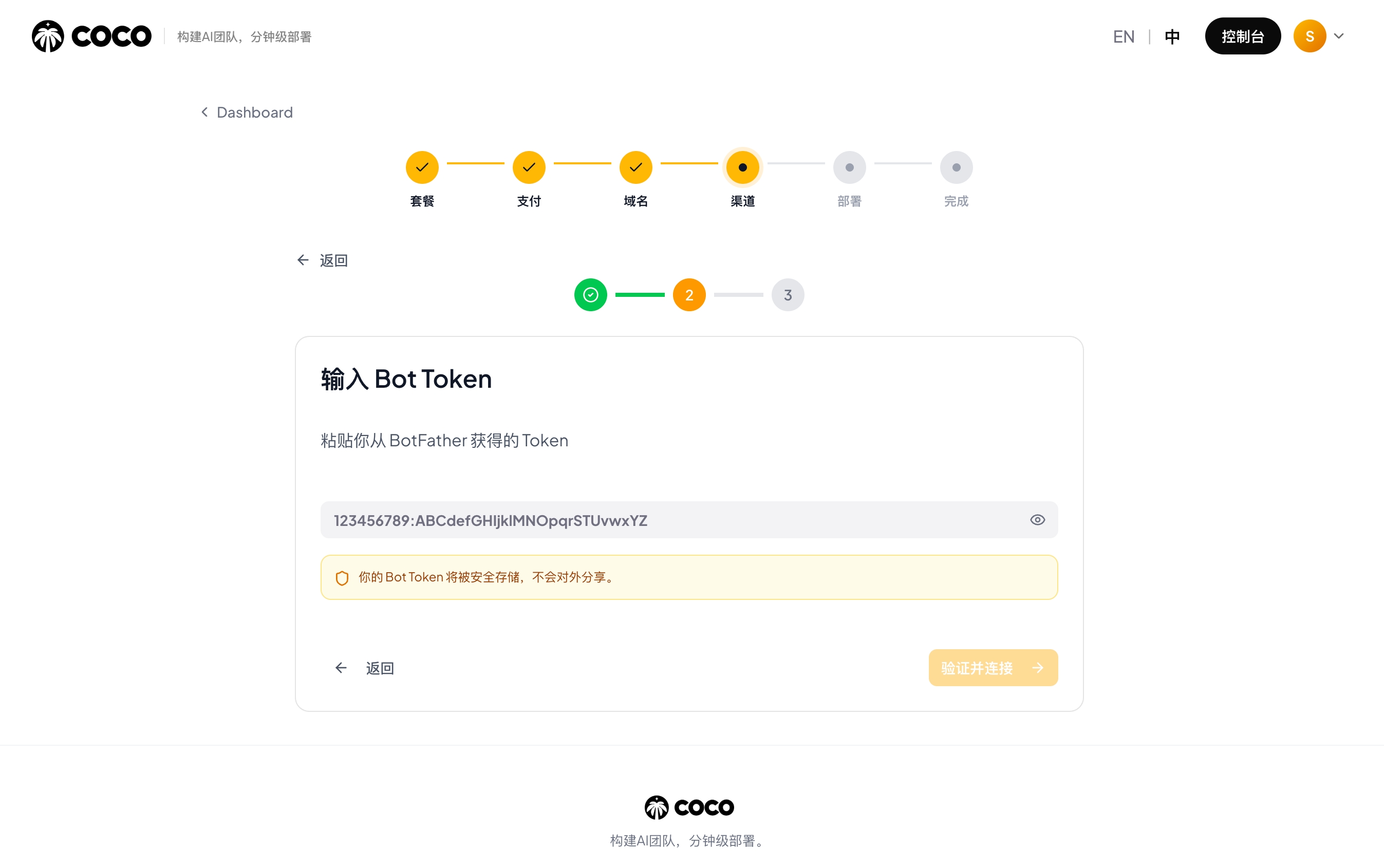
Step 3: Start Using
- In Telegram, search for your Bot username (e.g.,
@my_coco_ai_bot) - Click Start or send
/start - Send any message — AI employee responds immediately
- Deployment complete!
Tip: Telegram is the simplest deployment. No admin permissions needed, no extra configuration. Recommended for first-time users.
Telegram FAQ
| Issue | Solution |
|---|---|
| Bot not responding | Check if Token is correct, verify connection status in Dashboard |
| Slow responses | Check network connection. Telegram requires stable internet |
| Want multi-user access | Add Bot to a Telegram group. All group members can interact with AI |
| Want to switch Bot | Disconnect old one in Dashboard, create new Bot and reconnect |
Option B: Lark / Feishu Deployment
Estimated time: 8-15 minutes
Note: Adding a self-built app (Bot) in Lark/Feishu requires enterprise admin approval. If you don't want to set up an enterprise Bot right away, you can first create a Lark personal account (international) or Feishu personal account (domestic). You can create and use Bots in your personal workspace without admin approval.
Lark (international) and Feishu (domestic China) have slightly different interfaces. Choose the guide that matches your platform:
Lark Deployment (Recommended for international teams)
WebSocket long connection: Only App ID and App Secret required — no Webhook URL, Verification Token, or public domain needed.
Step 1: Access Lark Open Platform
- Visit Lark Open Platform
- Log in with your Lark account
- Click Developer Backend in the top-right corner
Step 2: Create a Custom App
- In the Developer Backend, click Create Custom App
- Enter app name (e.g.,
COCO AI Employee) and description - Click Create to finish
Tip: Enterprise admin permissions are required. If you're not an admin, contact your IT department or use a Lark personal account first.
Step 3: Add Bot Capability
In the app management page, go to Add Capabilities in the left sidebar, find the Bot card, and click "Configure" or "+ Add". After adding, a Bot menu item will appear in the left sidebar.
Important: You must add the Bot capability first before configuring messaging-related permissions (e.g.,
im:message.group_at_msg:readonly). Otherwise the permission checkbox will be disabled.
After adding, go to Credentials & Basic Info in the left sidebar and note down:
- App ID
- App Secret
Step 4: Configure Permissions
In the app management page, go to Permissions & Scopes. Click Batch Import/Export Permissions, paste the following JSON, and import all permissions at once:
{
  "scopes": {
    "tenant": [
      "contact:contact.base:readonly",
      "contact:user.base:readonly",
      "im:app_feed_card:write",
      "im:chat",
      "im:chat.announcement:read",
      "im:chat.announcement:write_only",
      "im:chat.chat_pins:read",
      "im:chat.chat_pins:write_only",
      "im:chat.collab_plugins:read",
      "im:chat.collab_plugins:write_only",
      "im:chat.labels",
      "im:chat.managers:write_only",
      "im:chat.members:bot_access",
      "im:chat.members:read",
      "im:chat.members:write_only",
      "im:chat.menu_tree:read",
      "im:chat.menu_tree:write_only",
      "im:chat.moderation:read",
      "im:chat.tabs:read",
      "im:chat.tabs:write_only",
      "im:chat.top_notice:write_only",
      "im:chat.widgets:read",
      "im:chat.widgets:write_only",
      "im:chat:create",
      "im:chat:delete",
      "im:chat:moderation:write_only",
      "im:chat:operate_as_owner",
      "im:chat:read",
      "im:chat:readonly",
      "im:chat:update",
      "im:datasync.feed_card.time_sensitive:write",
      "im:message",
      "im:message.group_at_msg:readonly",
      "im:message.group_msg",
      "im:message.group_msg:readonly",
      "im:message.p2p_msg:readonly",
      "im:message.pins:read",
      "im:message.pins:write_only",
      "im:message.reactions:read",
      "im:message.reactions:write_only",
      "im:message.urgent",
      "im:message.urgent:phone",
      "im:message.urgent:sms",
      "im:message:readonly",
      "im:message:recall",
      "im:message:send_as_bot",
      "im:message:send_multi_depts",
      "im:message:send_sys_msg",
      "im:message:update",
      "im:resource",
      "im:url_preview.update",
      "im:user_agent:read"
    ],
    "user": []
  }
}
Scope overview: The scopes above cover contacts (read), chat management (full), messaging (send/receive/recall/pin/react), group @mention listening, urgent messages, file resources, and feed cards. The
im:message:send_multi_deptsscope replaces the olderim:message:send_multi_usersname used in previous versions of the platform. The Feishu (domestic China) version uses a slightly smaller scope set — see the Feishu section for details.
Step 5: Connect in COCO Dashboard and Deploy
- Log into COCO Dashboard
- Go to the channel configuration page, select Lark
- Enter the following credentials:
| Field | Source |
|---|---|
| App ID | Lark Open Platform → Credentials & Basic Info |
| App Secret | Lark Open Platform → Credentials & Basic Info |
- Click Connect — the system will automatically deploy your AI employee (typically takes 2-3 minutes)
Tip: With WebSocket long connection, only App ID and App Secret are needed — no Verification Token, Encrypt Key, or Webhook URL required.
Step 6: Configure Event Subscription
Return to the Lark Developer Backend, go to Events & Callbacks
Under subscription mode, select Receive events through persistent connection
Click Add Events and subscribe to:
im.message.receive_v1— Receive messages (required)im.chat.member.bot.added_v1— Bot added to group (optional)
Click Save
Tip: With persistent connection mode, no Request URL is needed — events are received automatically via WebSocket.
Step 7: Create Version and Publish
- In the Lark Developer Backend, go to Version Management & Publishing
- Click Create Version
- Enter version number (e.g.,
1.0.0) and update description - Confirm app capabilities and permissions, click Save
- In the confirmation dialog, click Confirm Publish
Admin Approval: After publishing a Lark custom app, the enterprise admin must approve it in the Lark Admin Console before the app becomes active. If you're using a personal account, this step is not needed.
Step 8: Enable Bot and Add to Groups
- In Lark Open Platform, go to Bot menu, confirm bot functionality is enabled
- Open Lark client
- Create or enter a group
- Group Settings → Bots → Add Bot → Search for your app name
- Confirm addition
- @mention your bot in the group and send a message
- AI employee responds → Deployment complete!
Also works in private chat: Search for your app name in Lark and start a direct conversation.
Feishu Deployment (Recommended for domestic China teams)
WebSocket (Recommended): Simplest setup — only needs App ID and App Secret, no Webhook URL or verification required.
Webhook (Traditional): Feishu pushes events to a Webhook URL — requires Verification Token configuration.
Step 1: Access Feishu Open Platform
- Visit Feishu Open Platform
- Log in with your Feishu account
- Click Developer Backend in the top-right corner
Step 2: Create an Enterprise App
- In the Developer Backend, click Create Custom App
- Enter app name (e.g.,
COCO AI Employee) and description, select an app icon - Click Create to finish
- After creation, go to Credentials & Basic Info in the left sidebar and note down:
- App ID
- App Secret
Tip: Enterprise admin permissions are required. If you're not an admin, contact your IT department or use a Feishu personal account first.
Step 3: Add Bot Capability and Configure Permissions
In the app management page, first add the Bot capability by clicking + Add, then go to Permission Management in the left sidebar.
In the Permission Management page, copy the following JSON and import all permissions at once:
{
  "scopes": {
    "tenant": [
      "contact:contact.base:readonly",
      "contact:user.base:readonly",
      "im:app_feed_card:write",
      "im:chat",
      "im:chat.announcement:read",
      "im:chat.announcement:write_only",
      "im:chat.chat_pins:read",
      "im:chat.chat_pins:write_only",
      "im:chat.collab_plugins:read",
      "im:chat.collab_plugins:write_only",
      "im:chat.managers:write_only",
      "im:chat.members:bot_access",
      "im:chat.members:read",
      "im:chat.members:write_only",
      "im:chat.menu_tree:read",
      "im:chat.menu_tree:write_only",
      "im:chat.moderation:read",
      "im:chat.tabs:read",
      "im:chat.tabs:write_only",
      "im:chat.top_notice:write_only",
      "im:chat.widgets:read",
      "im:chat.widgets:write_only",
      "im:chat:create",
      "im:chat:delete",
      "im:chat:moderation:write_only",
      "im:chat:operate_as_owner",
      "im:chat:read",
      "im:chat:readonly",
      "im:chat:update",
      "im:datasync.feed_card.time_sensitive:write",
      "im:message",
      "im:message.group_at_msg:readonly",
      "im:message.group_msg",
      "im:message.p2p_msg:readonly",
      "im:message.pins:read",
      "im:message.pins:write_only",
      "im:message.reactions:read",
      "im:message.reactions:write_only",
      "im:message.urgent",
      "im:message.urgent:phone",
      "im:message.urgent:sms",
      "im:message:readonly",
      "im:message:recall",
      "im:message:send_as_bot",
      "im:message:send_multi_depts",
      "im:message:send_sys_msg",
      "im:message:update",
      "im:resource",
      "im:url_preview.update",
      "im:user_agent:read"
    ],
    "user": []
  }
}
Feishu vs Lark scopes: The Feishu (domestic China) scope set above differs slightly from the Lark (international) version. Two scopes —
im:chat.labelsandim:message.group_msg:readonly— are not supported on the Feishu China platform and have been removed. All other scopes are identical.
Step 4: Get Verification Token
- In app management, go to Events & Callbacks
- Click the Encryption Strategy tab
- Find the Verification Token at the bottom of the page, click the eye icon to view and copy it
Tip: On the same page you'll also find the Encrypt Key (optional). If you need encrypted communication, record this as well.
Step 5: Connect in COCO Dashboard and Deploy
- Log into COCO Dashboard
- Go to the channel configuration page, select Feishu
- Enter the following credentials:
| Field | Source |
|---|---|
| App ID | Feishu Open Platform → Credentials & Basic Info |
| App Secret | Feishu Open Platform → Credentials & Basic Info |
| Verification Token | Feishu Open Platform → Events & Callbacks → Encryption Strategy |
| Encrypt Key (optional) | Feishu Open Platform → Events & Callbacks → Encryption Strategy |
- Click Connect — the system will automatically deploy your AI employee (typically takes 2-3 minutes)
- After deployment, the page will display your dedicated Webhook URL — copy this URL (needed in the next step)
Step 6: Configure Event Subscription
- Return to the Feishu Developer Backend, go to Events & Callbacks
- Under "Event Configuration", select Send events to developer server
- Paste the Webhook URL from the previous step into the Request URL field
- Subscribe to events:
im.message.receive_v1— Receive messages (required)im.chat.member.bot.added_v1— Bot added to group (optional)
- Click Save
Step 7: Create Version and Publish
- In the Feishu Developer Backend, go to Version Management & Publishing
- Click Create Version
- Enter version number (e.g.,
1.0.0) and update description - Confirm app capabilities and permissions, click Save
- In the confirmation dialog, click Confirm Publish
Admin Approval: After publishing a Feishu custom app, the enterprise admin must approve it in the Feishu Admin Console before the app becomes active. If you're using a personal account, this step is not needed.
Step 8: Enable Bot and Add to Groups
- In Feishu Open Platform, go to Bot menu, confirm bot functionality is enabled
- Open Feishu client
- Create or enter a group
- Group Settings → Bots → Add Bot → Search for your app name
- Confirm addition
- @mention your bot in the group and send a message
- AI employee responds → Deployment complete!
Also works in private chat: Search for your app name in Feishu and start a direct conversation.
Option C: WeCom (企业微信) Deployment
Estimated time: ~5 minutes
Version Note: This guide applies to WeCom component v0.1.1 and above (WebSocket long connection mode — no public IP or SSL required). If you are on the older v0.1.0 webhook mode, upgrade by sending
帮我升级 wecom 组件via the Dashboard Web Console.
Only 2 credentials are required:
| Credential | Description |
|---|---|
| Bot ID | Unique identifier for the intelligent robot |
| Secret | Robot authentication key |
Step 1: Create an Intelligent Robot
In the WeCom Admin Console, go to Workbench (工作台) → Intelligent Robots (智能机器人) → click Create Robot (创建机器人).
Step 2: Select Creation Method
In the dialog, click 手动创建 > (Manual Creation), or use AI auto-generation.
Step 3: Switch to API Mode
At the bottom of the page, click 切换至 API 模式创建 (Switch to API Mode Creation).
Step 4: Enable Long Connection and Copy Credentials
- Select 使用长连接 (Use Long Connection)
- Copy the Bot ID and Secret displayed on the page
- Set the Visibility Scope (可见范围) to determine who can use the bot
- Click Save
Important: The Secret is only shown once at creation. Save it immediately.
Step 5: Connect in Dashboard
In the COCO Dashboard, go to the employee instance detail page → Conversation Entrance (会话入口) → click the WeCom Connection button → enter the Bot ID and Secret from Step 4. Click Connect.
WeCom FAQ
| Issue | Solution |
|---|---|
| Bot not responding | Verify that Long Connection mode is enabled and the Bot ID / Secret are entered correctly |
| Secret lost | Delete the robot and create a new one — Secrets cannot be retrieved after creation |
Option D: DingTalk (钉钉) Deployment
Estimated time: 8-12 minutes
Note: DingTalk (钉钉) is Alibaba's enterprise collaboration platform, widely used by Chinese companies. DingTalk uses Stream mode (WebSocket long connection), so no public callback URL is needed — deployment is simpler.
Three credentials are required:
| Credential | Description |
|---|---|
| AppKey | Application unique identifier |
| AppSecret | Application credential key |
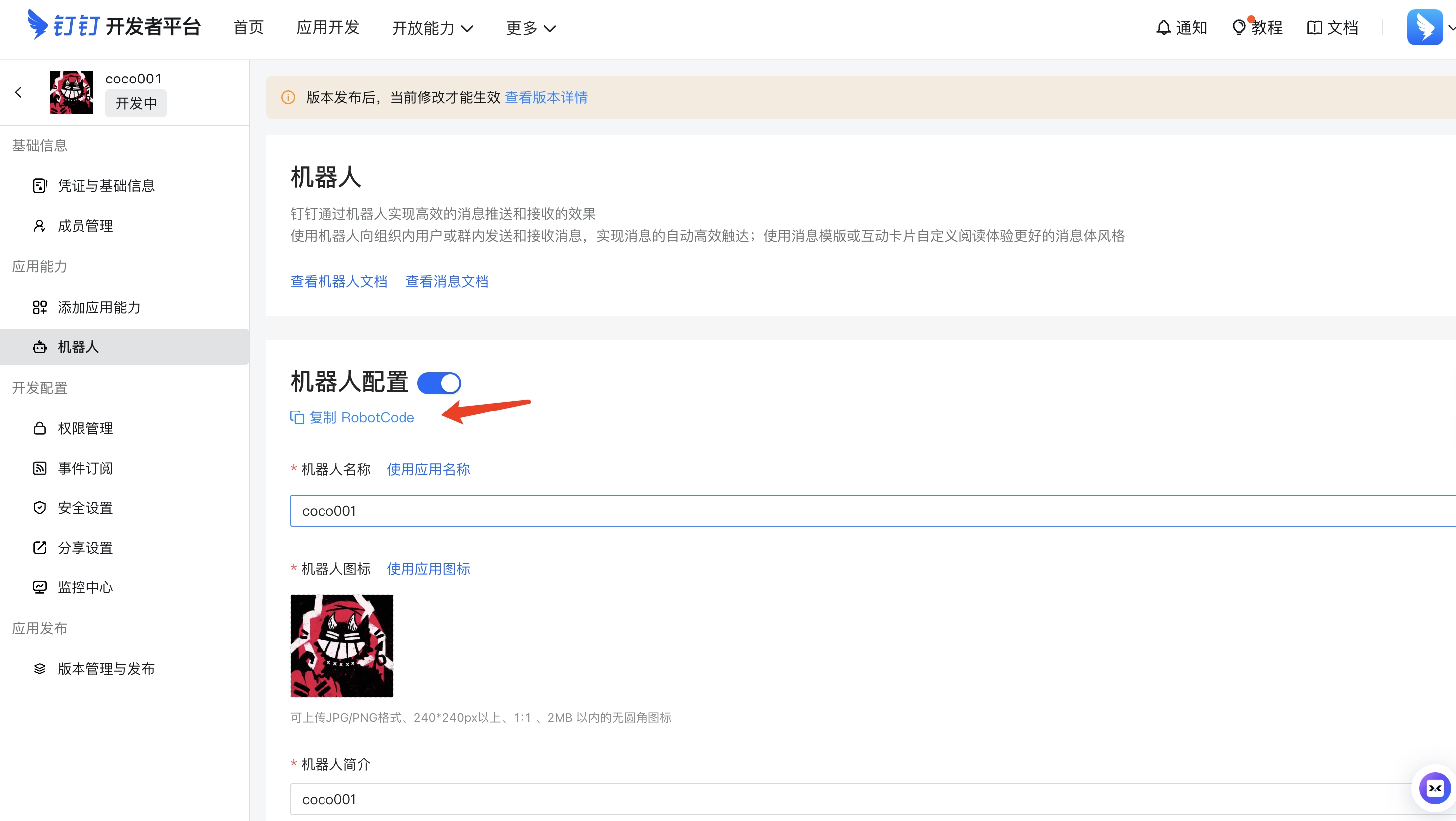
| RobotCode | Robot identifier (usually same as AppKey) |
Step 1: Access DingTalk Open Platform and Create an Application
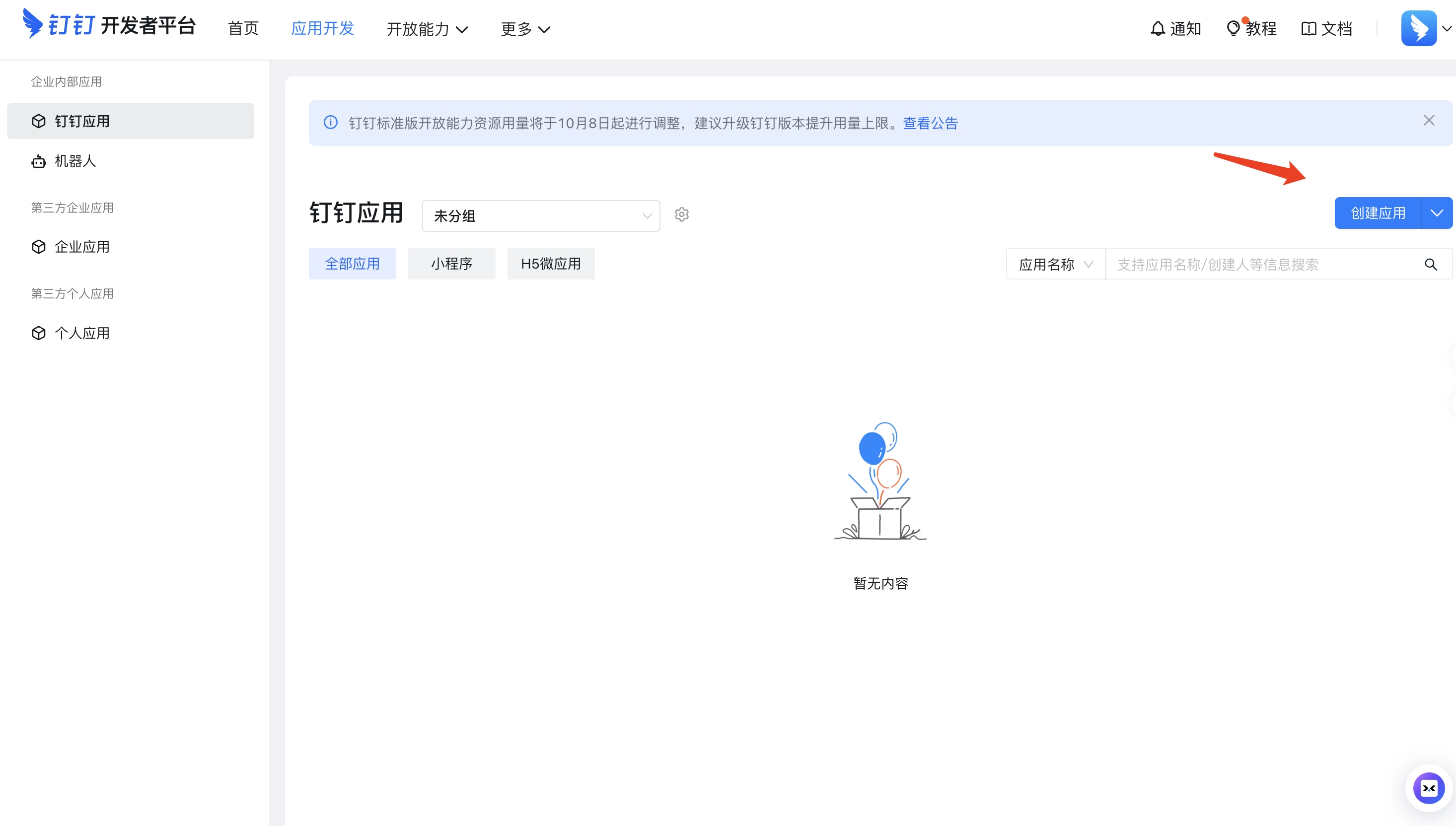
Visit the DingTalk Open Platform App Management page and click Create Application.
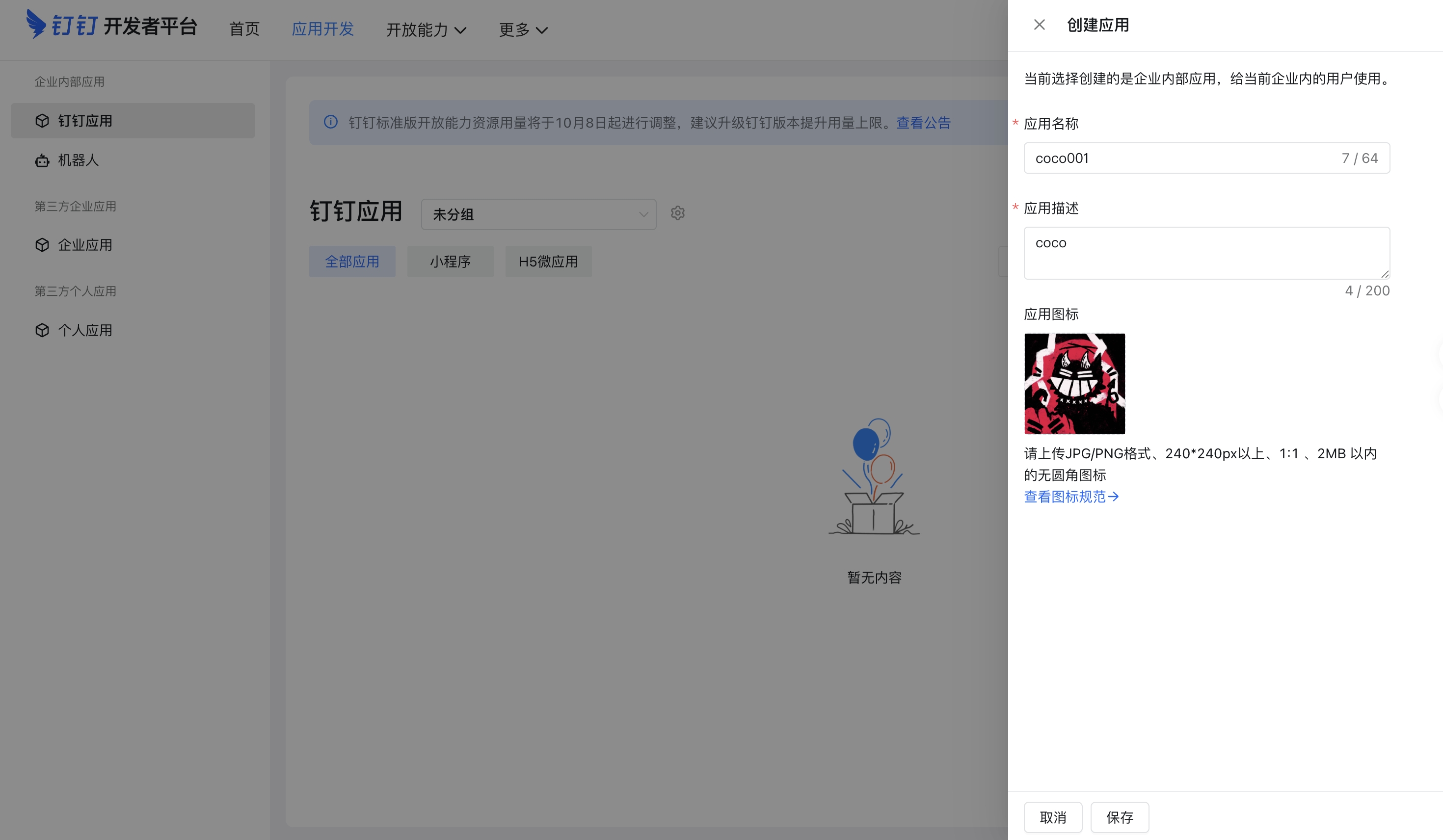
Step 2: Enter Application Name and Description
Enter the Application Name (e.g., COCO AI Employee) and Description, then click Save.
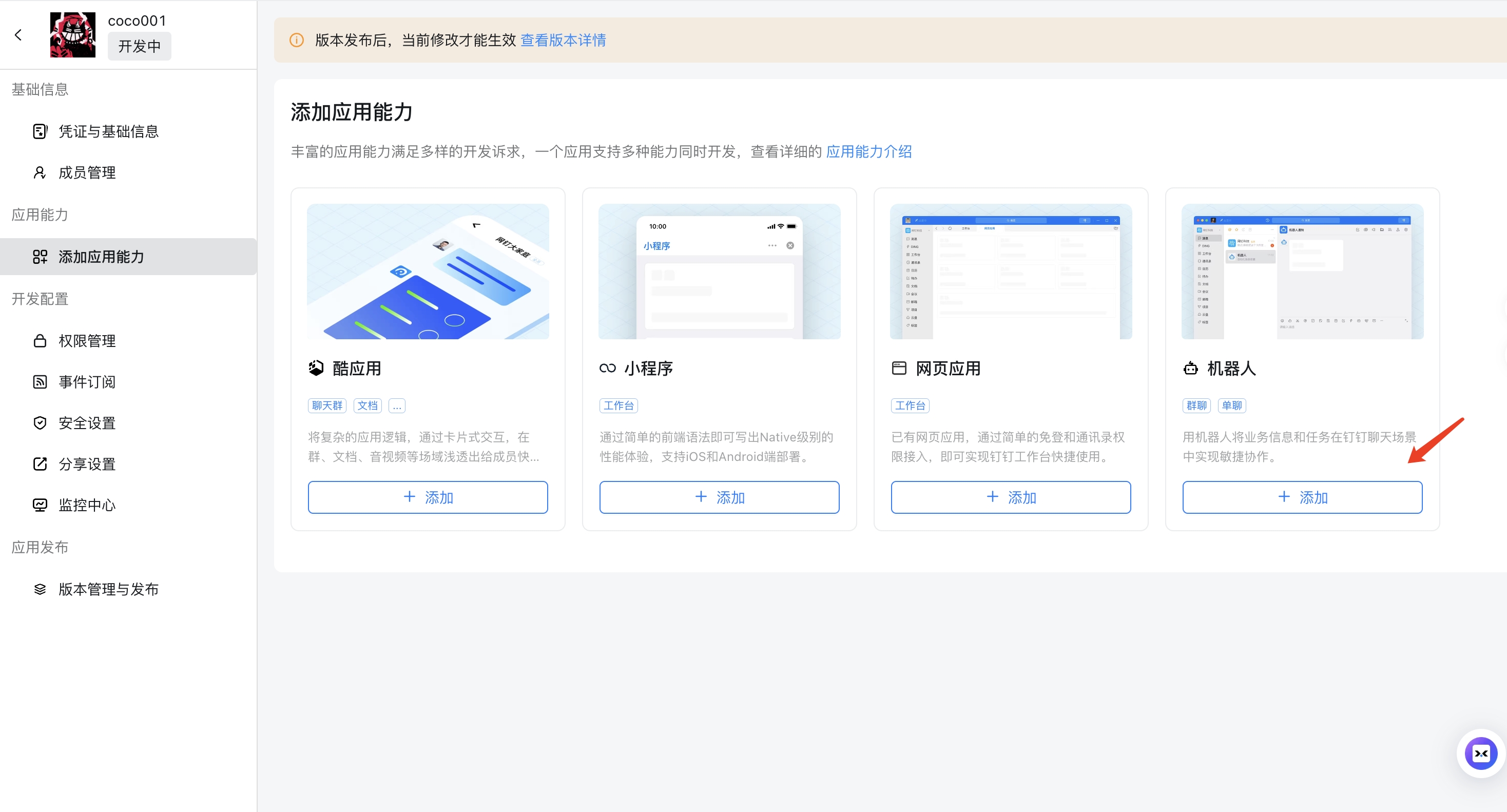
Step 3: Add Robot Capability
After saving, you'll be redirected to the "Add Capabilities" page. Click Add Robot capability.
Step 4: Configure Robot and Select Stream Mode
Open the robot configuration page, fill in the required information, select Stream Mode for message reception, then publish.
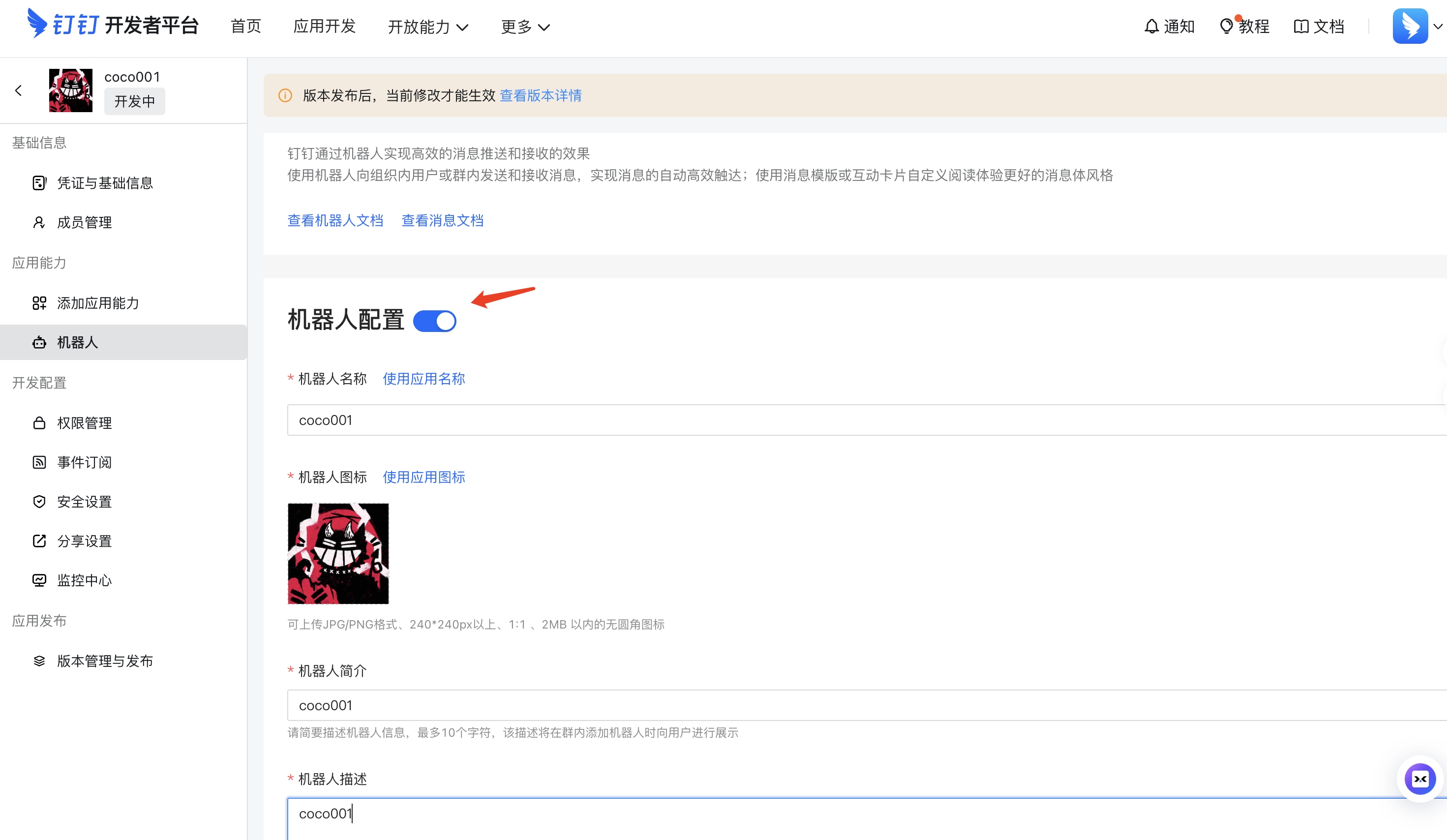
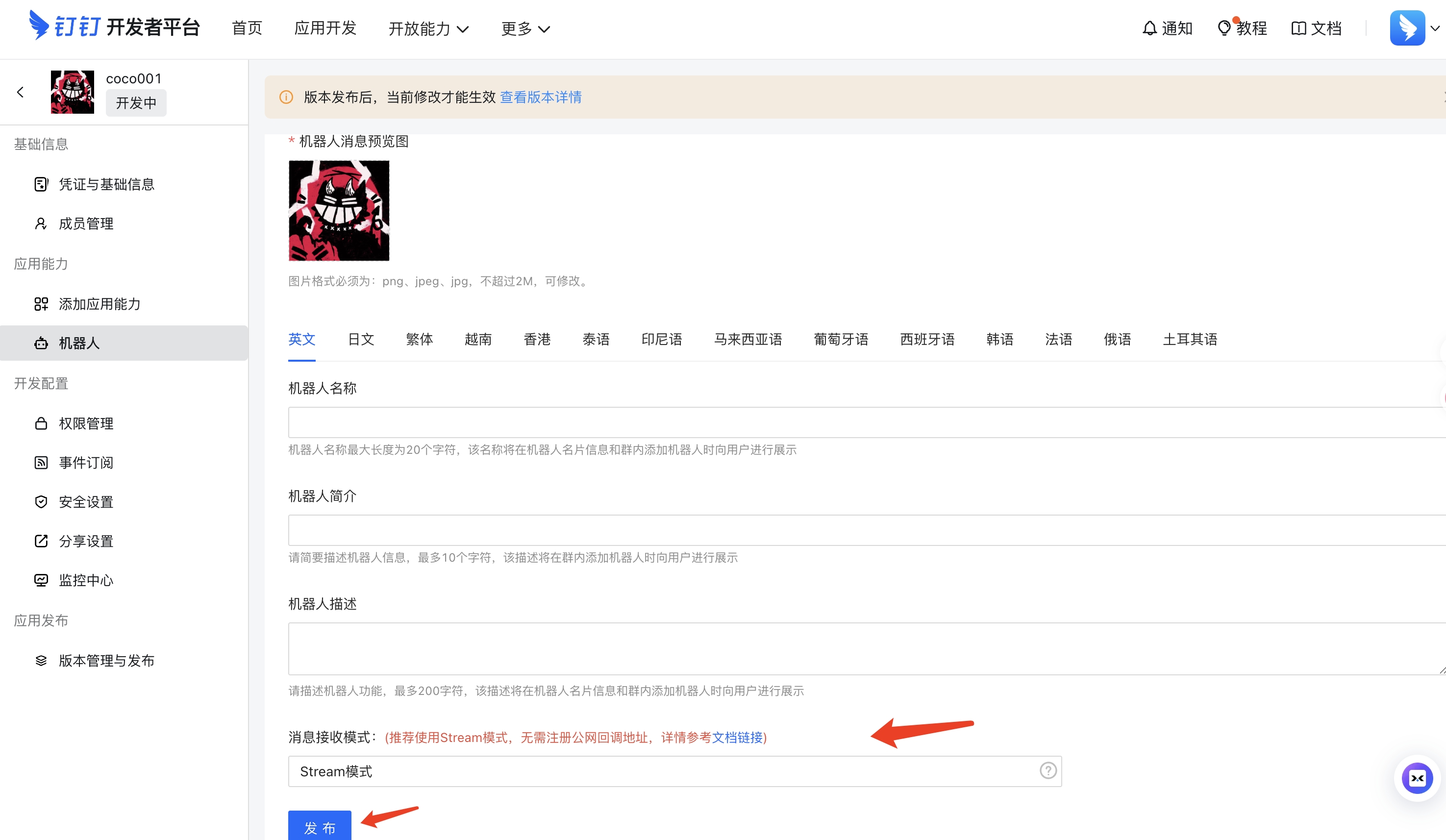
Note: Stream mode uses WebSocket long connections to receive messages — no public callback URL configuration needed, making deployment simpler.
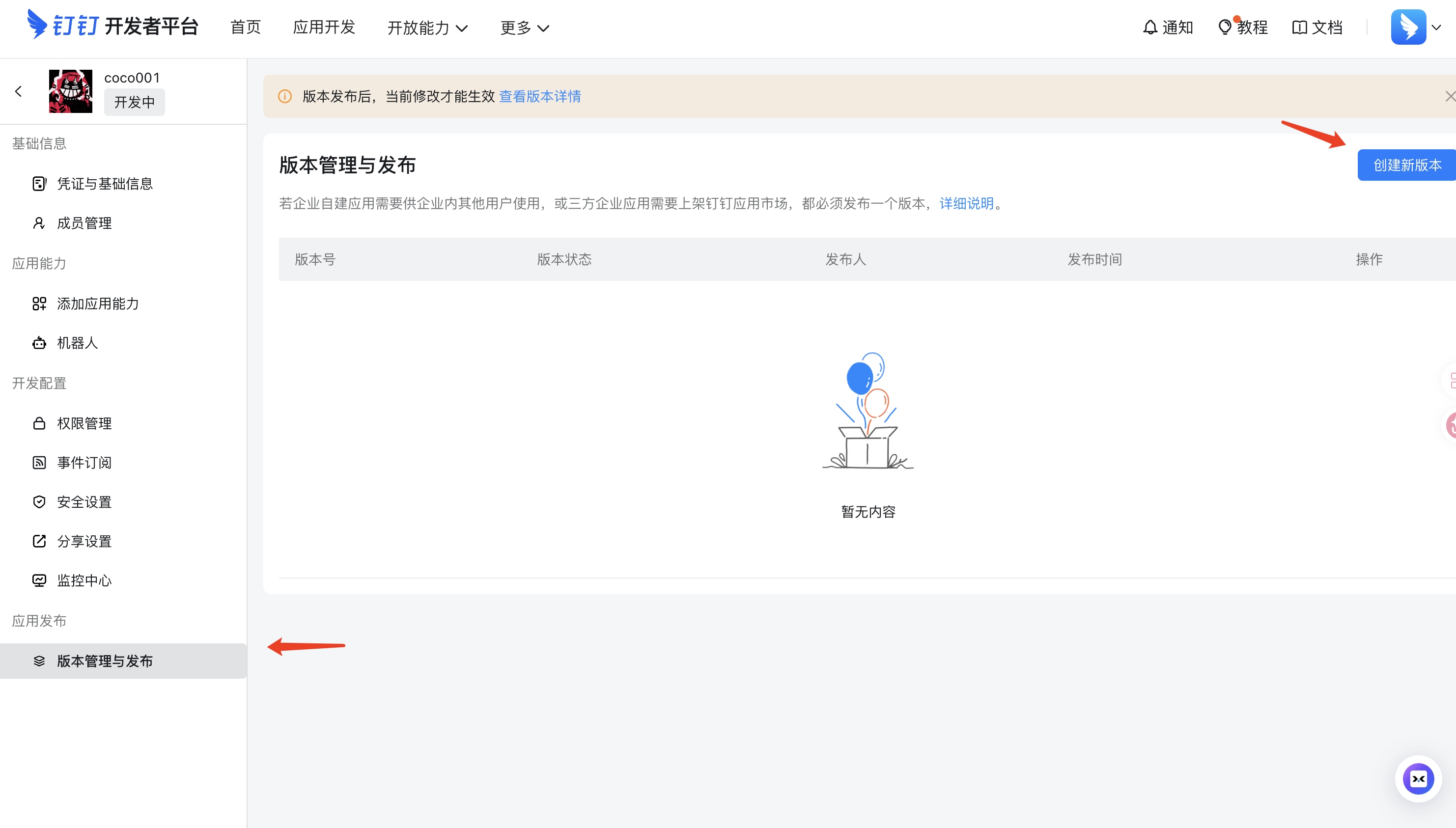
Step 5: Version Management and Publishing
In the left sidebar, select Version Management & Publishing and click Create New Version.
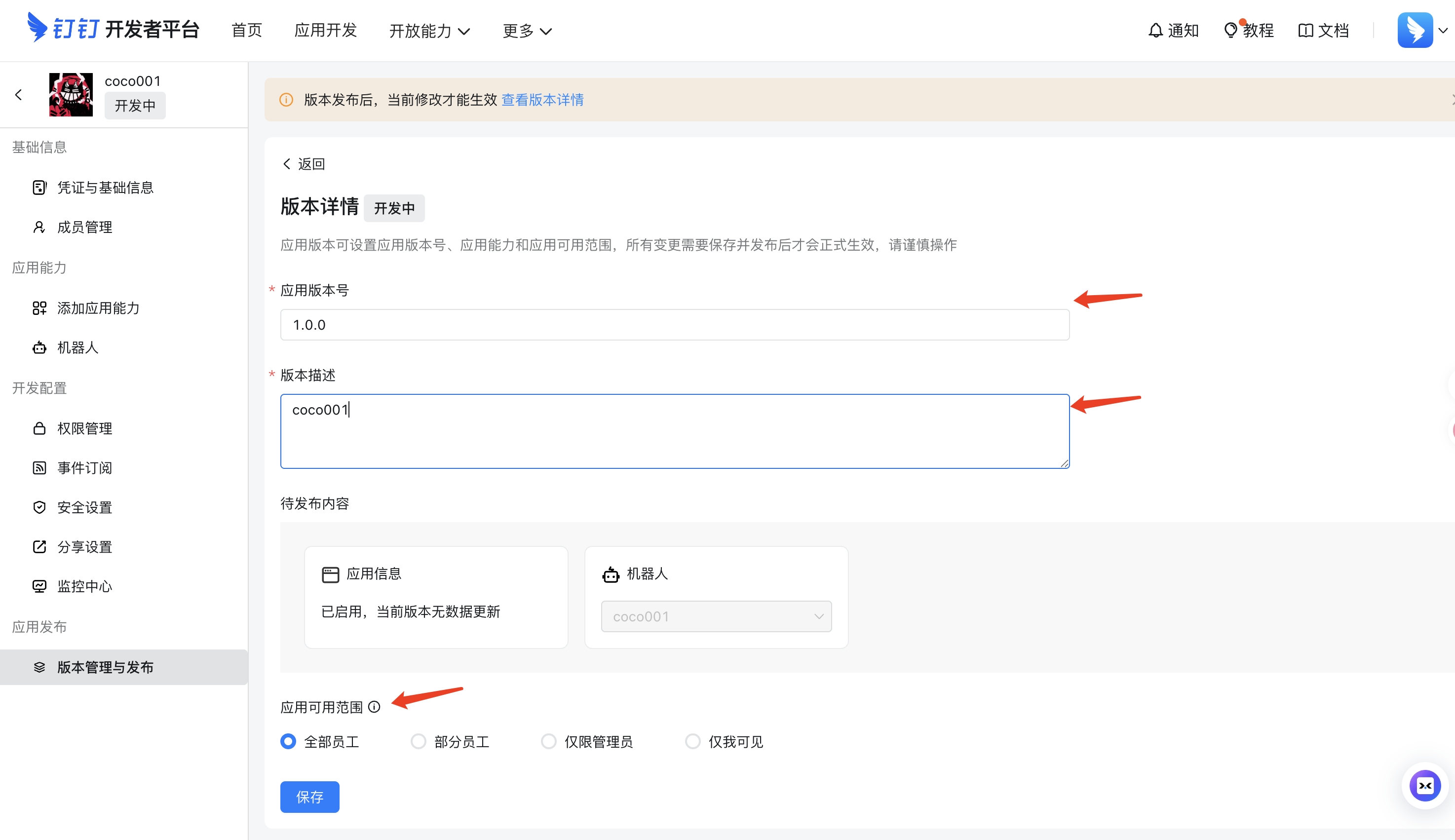
Step 6: Set Application Visible Scope
Enter the version information, select the appropriate Visible Scope (which team members can see and use the Bot), then save and publish.
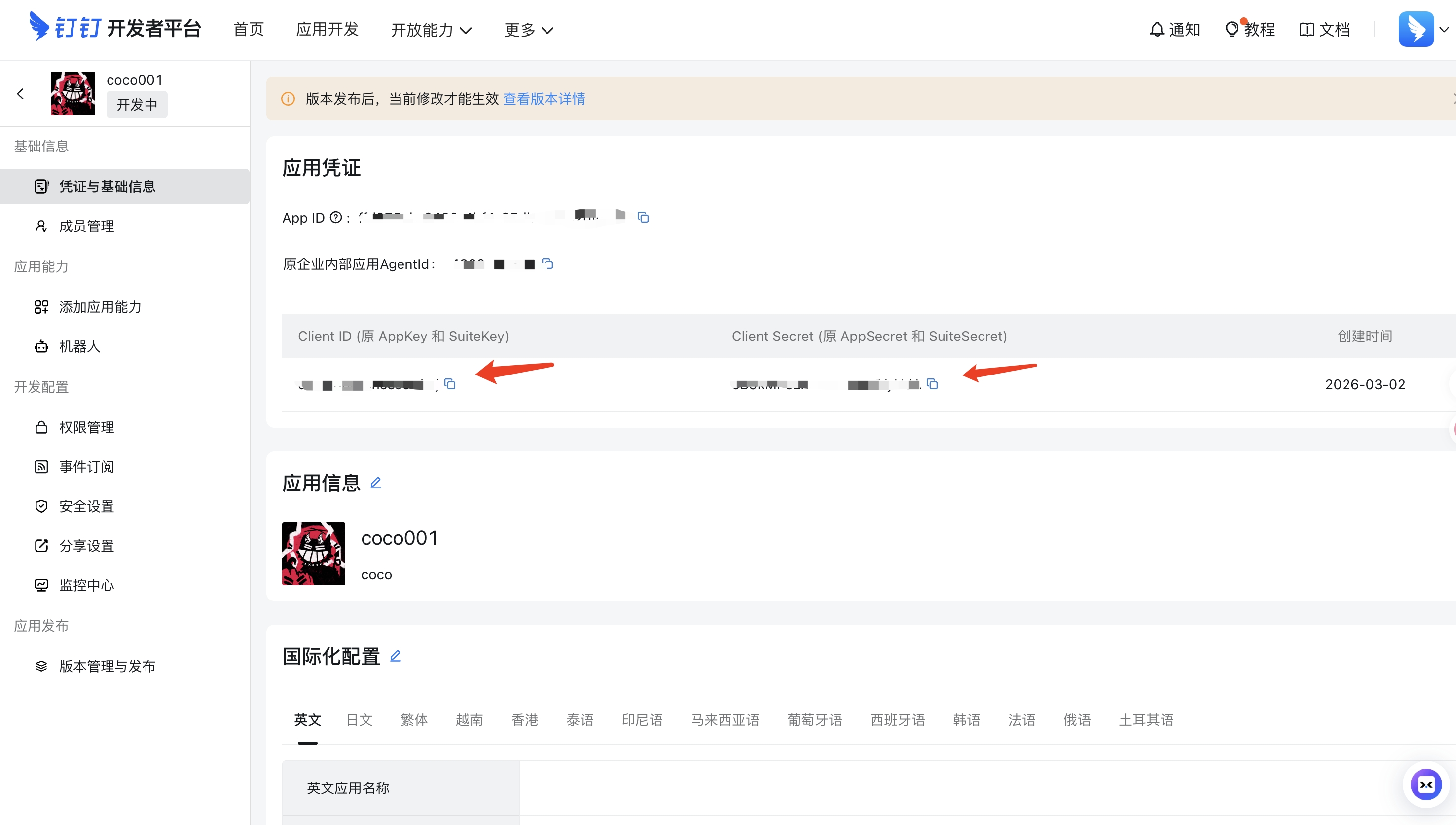
Step 7: Get AppKey, AppSecret, and RobotCode
In the application detail page under "Credentials & Basic Info":
- AppKey — application unique identifier
- AppSecret — click "Show" to view
On the robot configuration page, find the RobotCode (usually the same as AppKey).
Step 8: Enter Credentials in Dashboard
Enter the AppKey, AppSecret, and RobotCode into the COCO Dashboard's DingTalk channel configuration page and click Connect.
Step 9: Start Chatting
Search for the Bot name in DingTalk and start chatting with your AI employee.
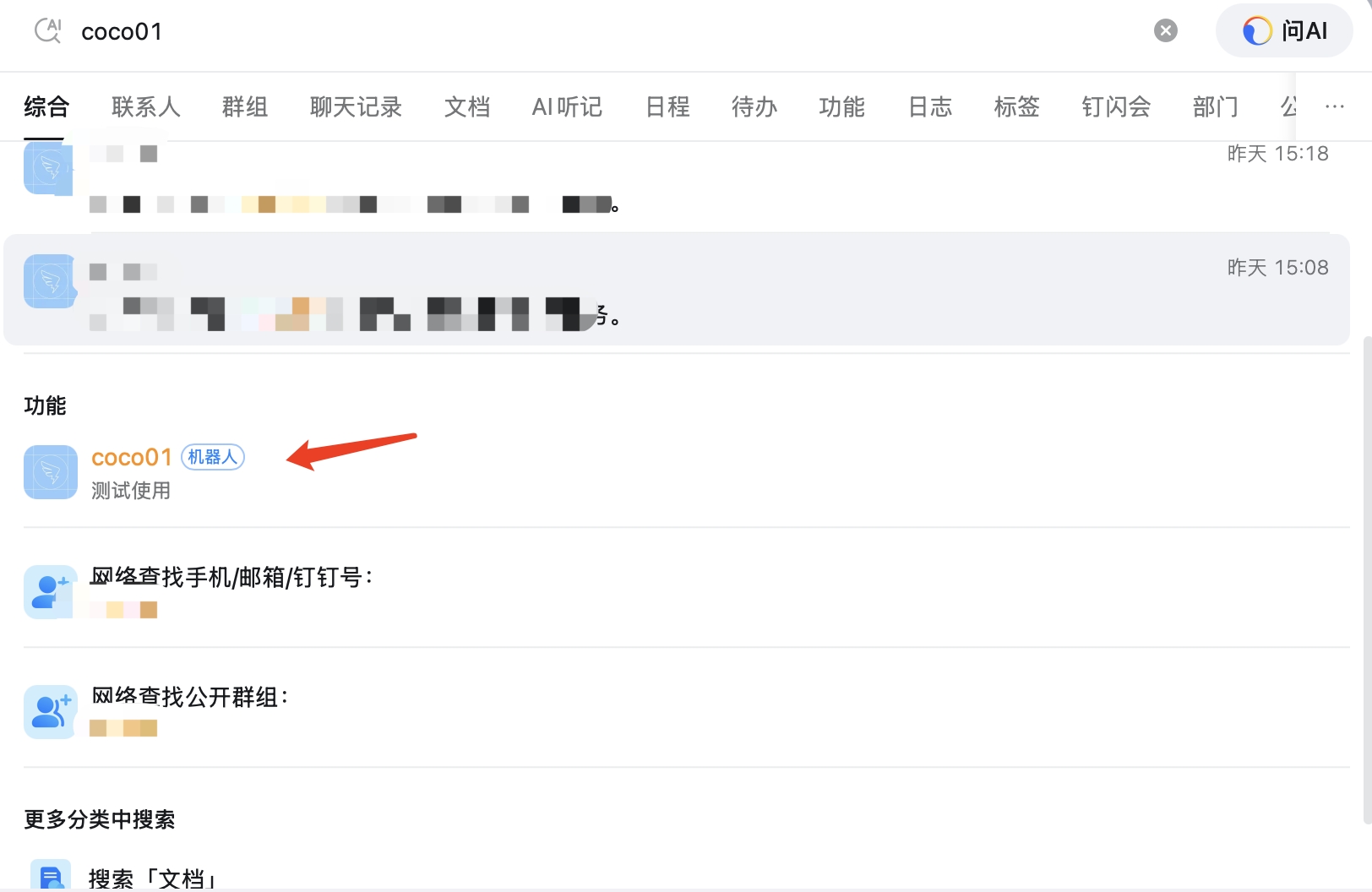
Group usage: In a DingTalk group chat, @mention your Bot to interact with the AI employee.
DingTalk FAQ
| Issue | Solution |
|---|---|
| Application not visible to team members | Check the Visible Scope in version publishing — ensure all intended users are included |
| Bot not responding in group | Confirm the robot has been added to the group and use @mention to trigger |
| AppSecret forgotten | View or reset in the application credentials page |
Option E: Slack Deployment
Estimated time: 8-12 minutes
Note: Slack is widely used by European and US enterprises for team collaboration. Slack uses Socket Mode (WebSocket connection), so no public callback URL is needed — deployment is straightforward.
Two credentials are required:
| Credential | Format | Description |
|---|---|---|
| Bot Token | xoxb-... | Bot User OAuth Token, used to call the Slack API |
| App Token | xapp-... | App-Level Token, used for Socket Mode connection |
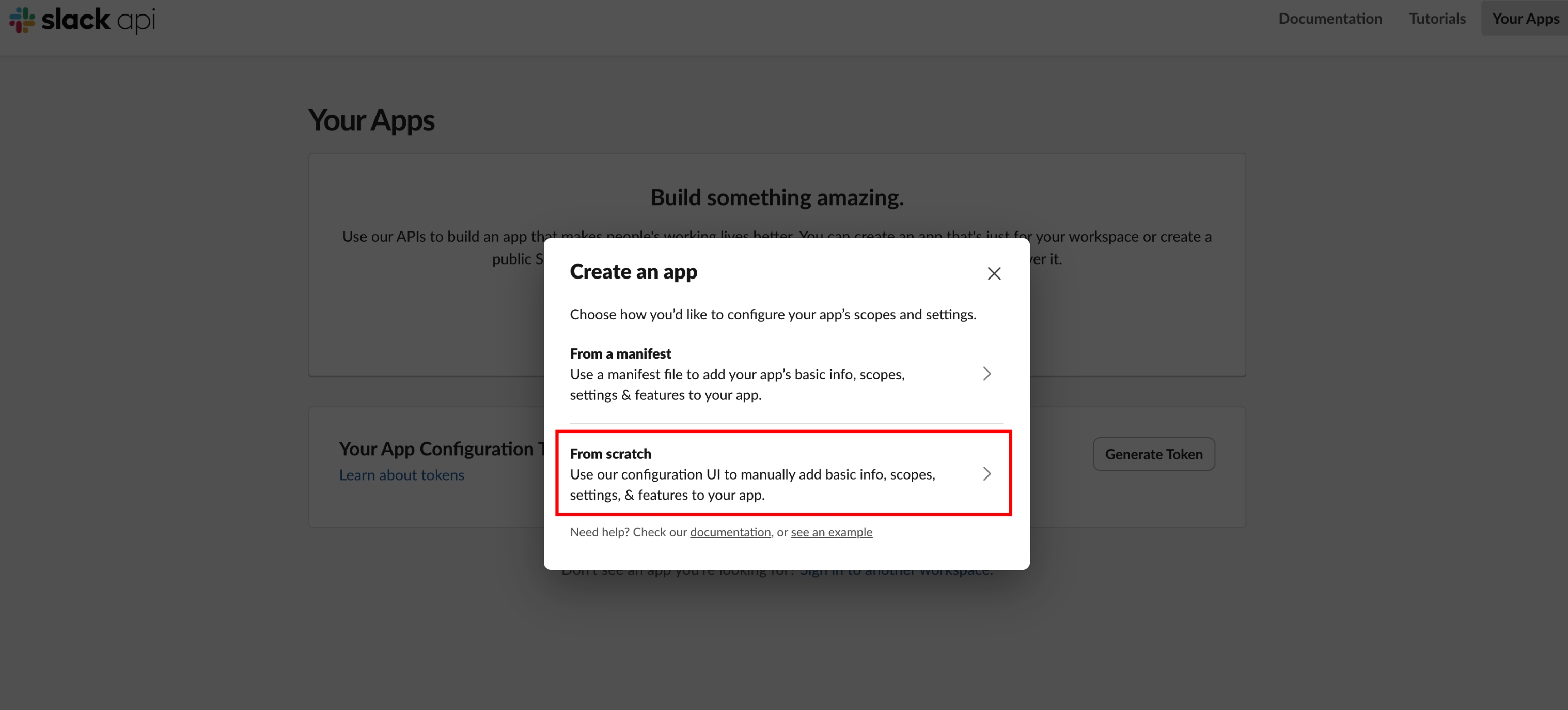
Step 1: Create a Slack App
- Visit Slack App Management and log in
- Click Create New App in the top-right corner
- Select From scratch in the popup
- Enter your App name (e.g.,
COCO AI Employee) and select the Workspace to install to - Click Create App to finish
Step 2: Enable Socket Mode and Generate App Token
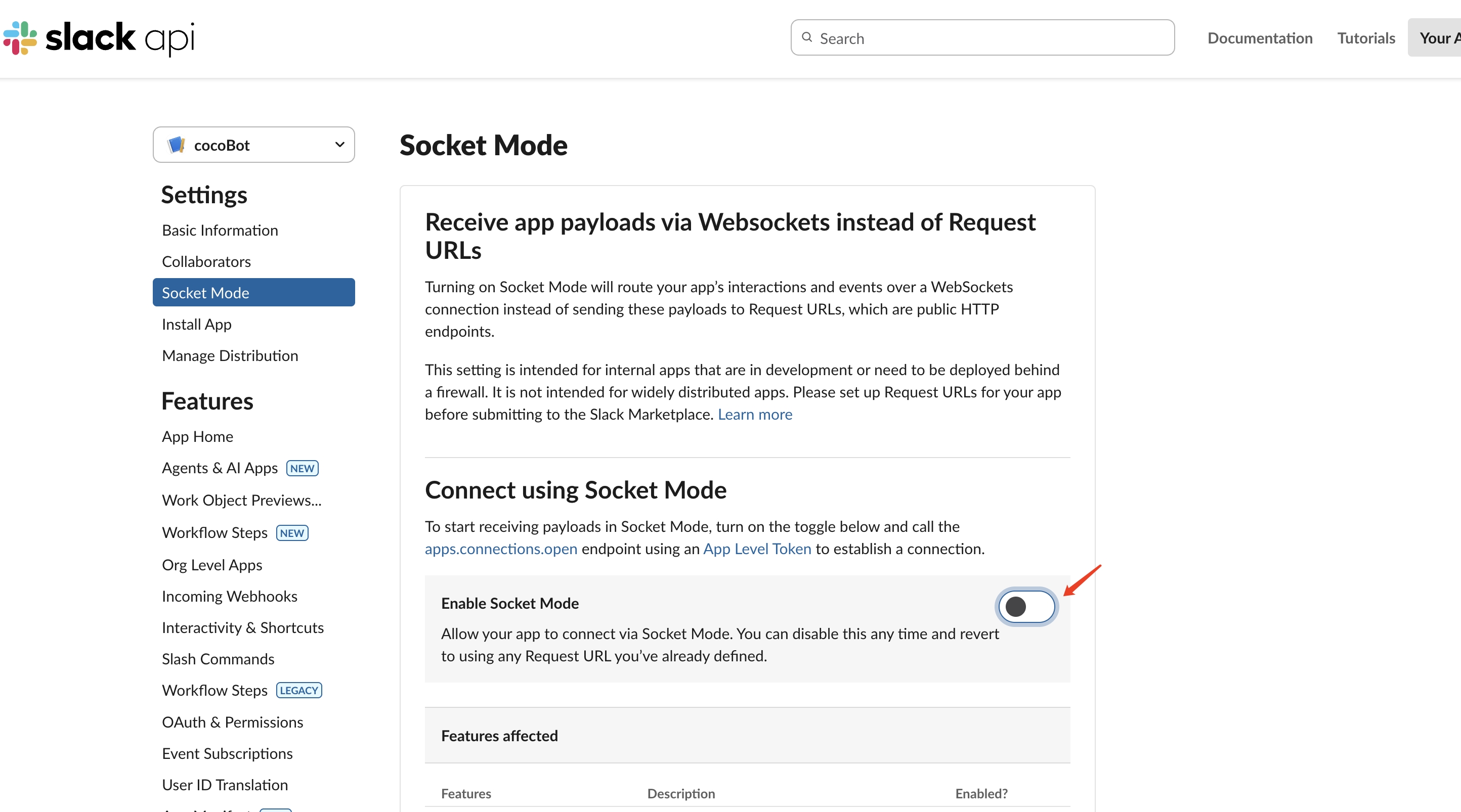
- In the App settings left sidebar, find Socket Mode
- Toggle Enable Socket Mode on
- When prompted to generate an App-Level Token:
- Name the Token (e.g.,
zylos-socket) - Add Scope: search and select
connections:write - Click Generate
- Name the Token (e.g.,
- Copy and save the generated Token (format:
xapp-...)
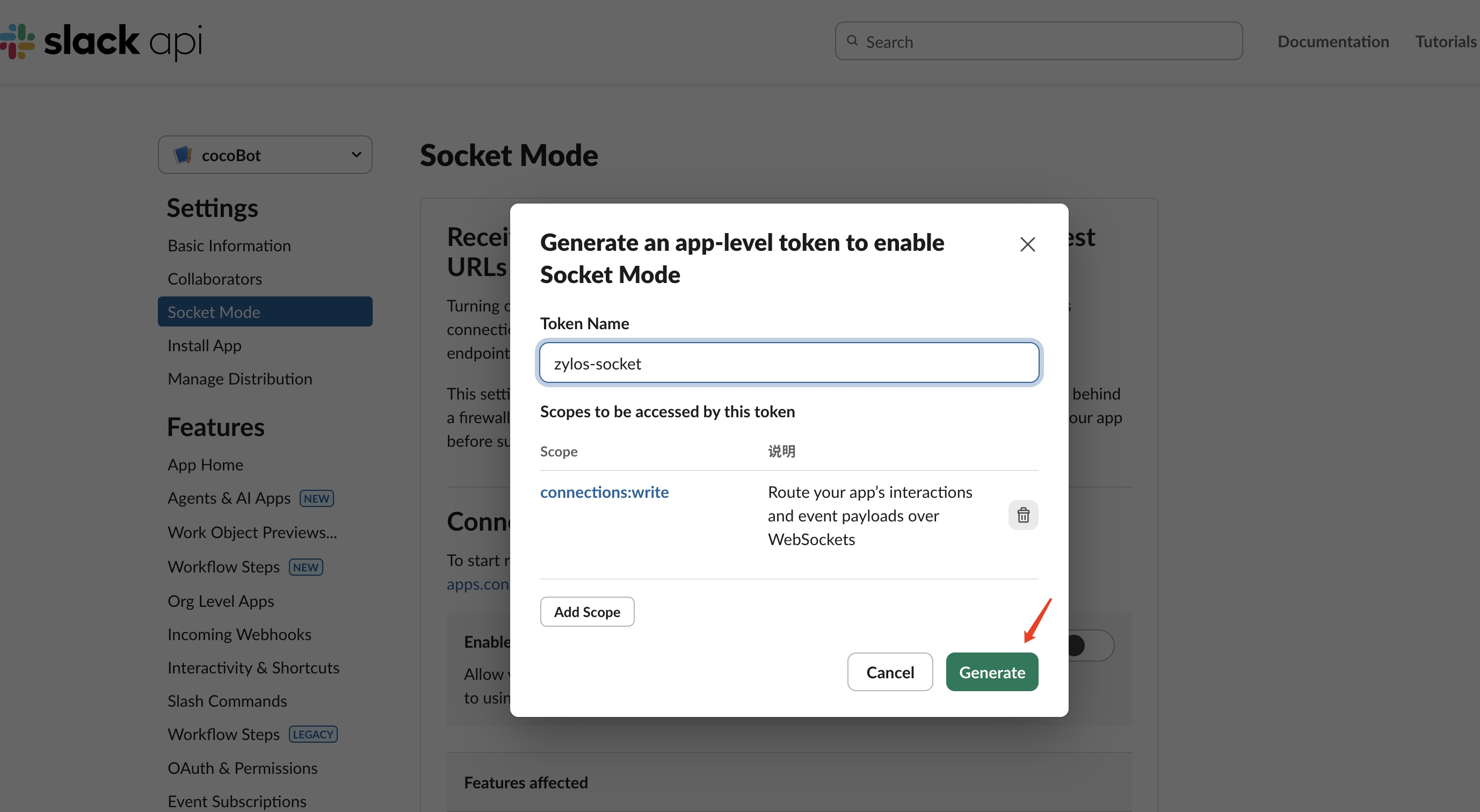
Important: The App Token is displayed only once after generation. Save it immediately. If lost, you'll need to regenerate it.
Step 3: Configure Bot Token Scopes
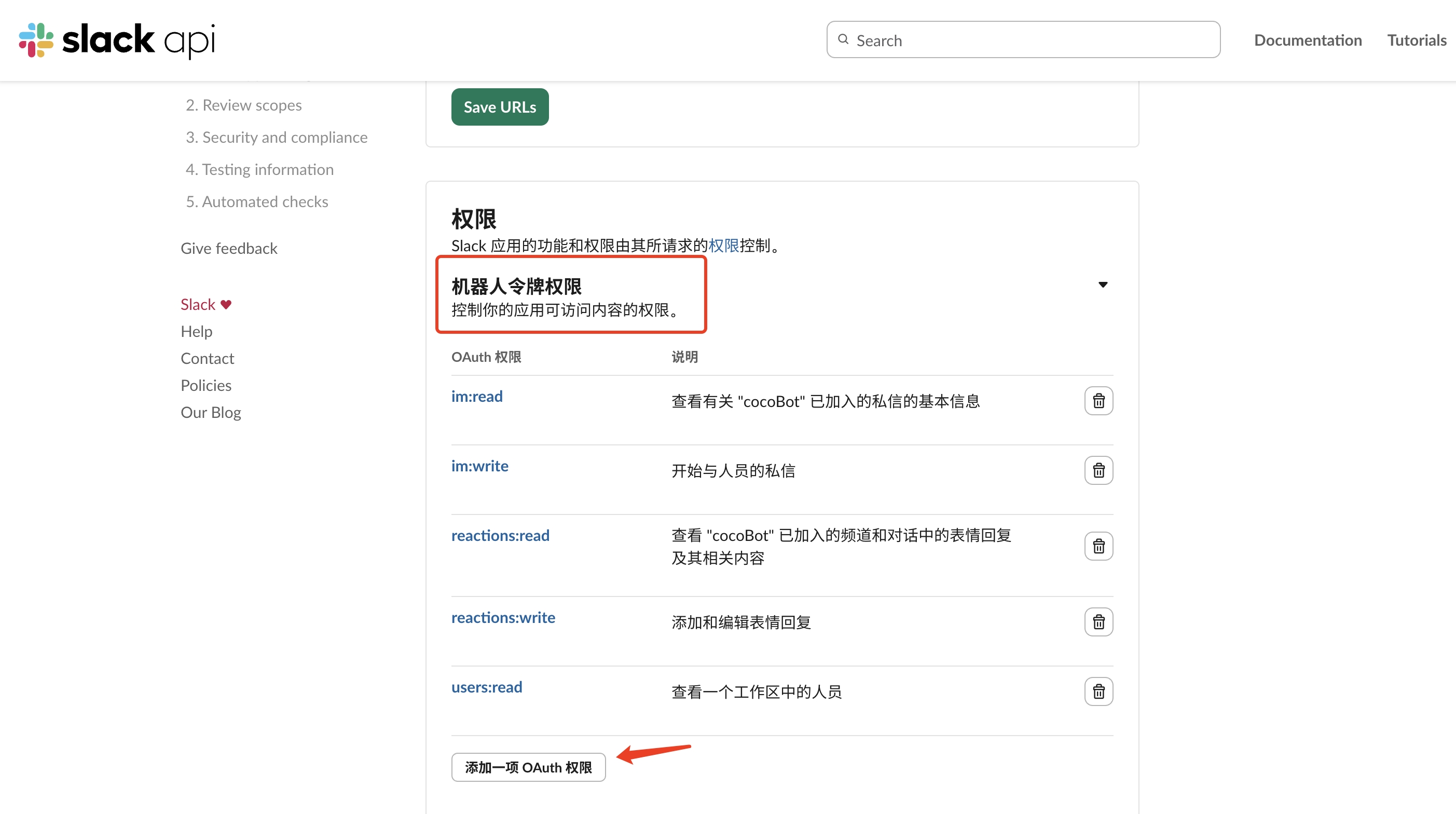
- In the left sidebar, go to OAuth & Permissions
- Scroll down to the Scopes section
- Under Bot Token Scopes, click Add an OAuth Scope and add the following permissions:
| Scope | Purpose |
|---|---|
app_mentions:read | Read @mentions of the bot |
channels:history | Read messages in public channels |
channels:read | View basic channel info |
chat:write | Send messages as the bot |
files:read | Read files shared with the bot |
files:write | Upload files |
groups:history | Read messages in private channels |
groups:read | View basic private channel info |
im:history | Read direct message history |
im:read | View basic DM info |
im:write | Start direct messages |
reactions:read | Read emoji reactions |
reactions:write | Add emoji reactions |
users:read | View user info |
Step 4: Install App to Workspace
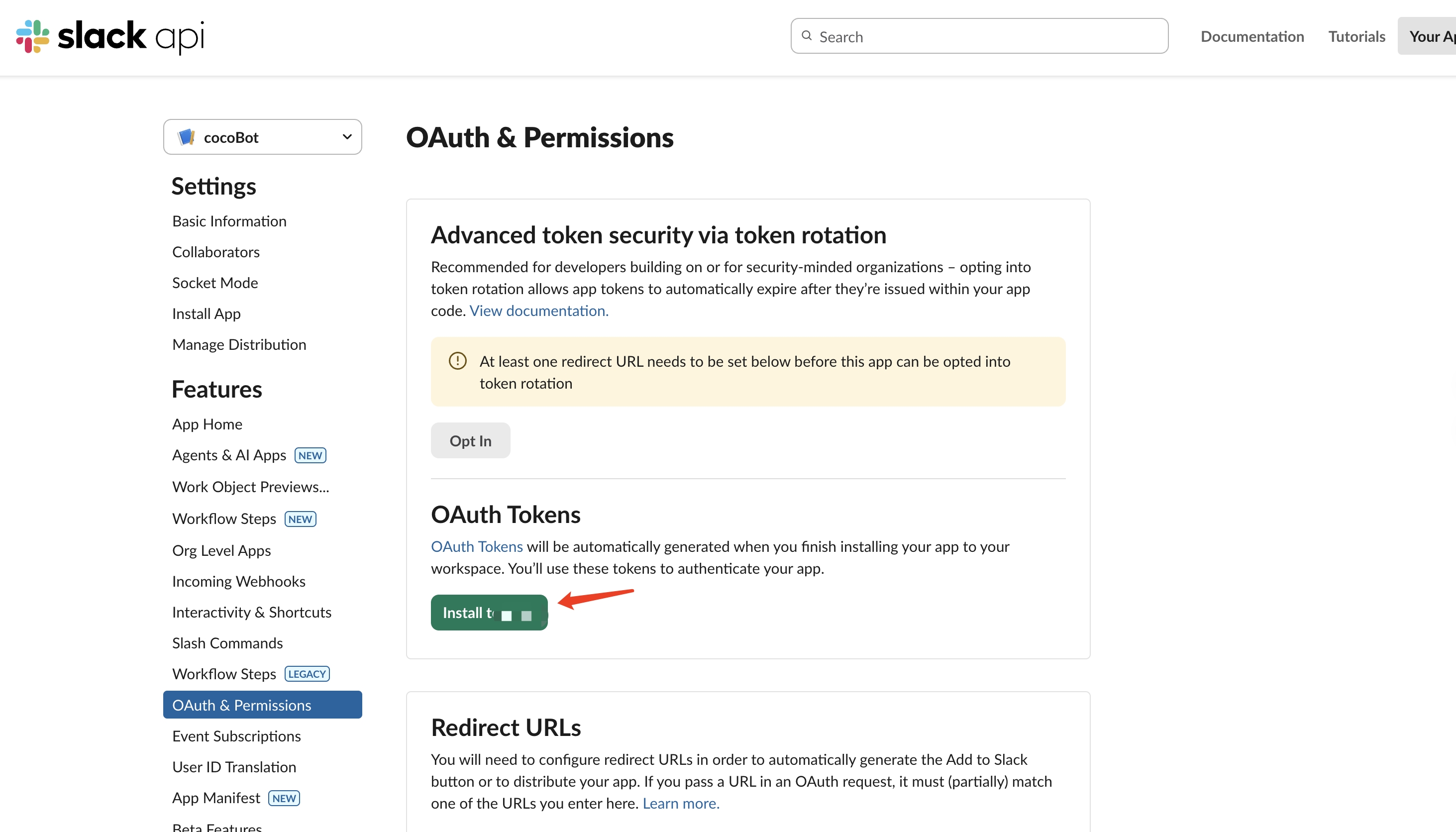
- Go back to the top of the OAuth & Permissions page
- Click Install to Workspace (or Reinstall to Workspace)
- Confirm the permissions in the authorization popup, click Allow
- After installation, copy and save the Bot User OAuth Token (format:
xoxb-...)
Important: Each time you modify Scopes, you must reinstall the App to Workspace. The Token will be regenerated — update your configuration accordingly.
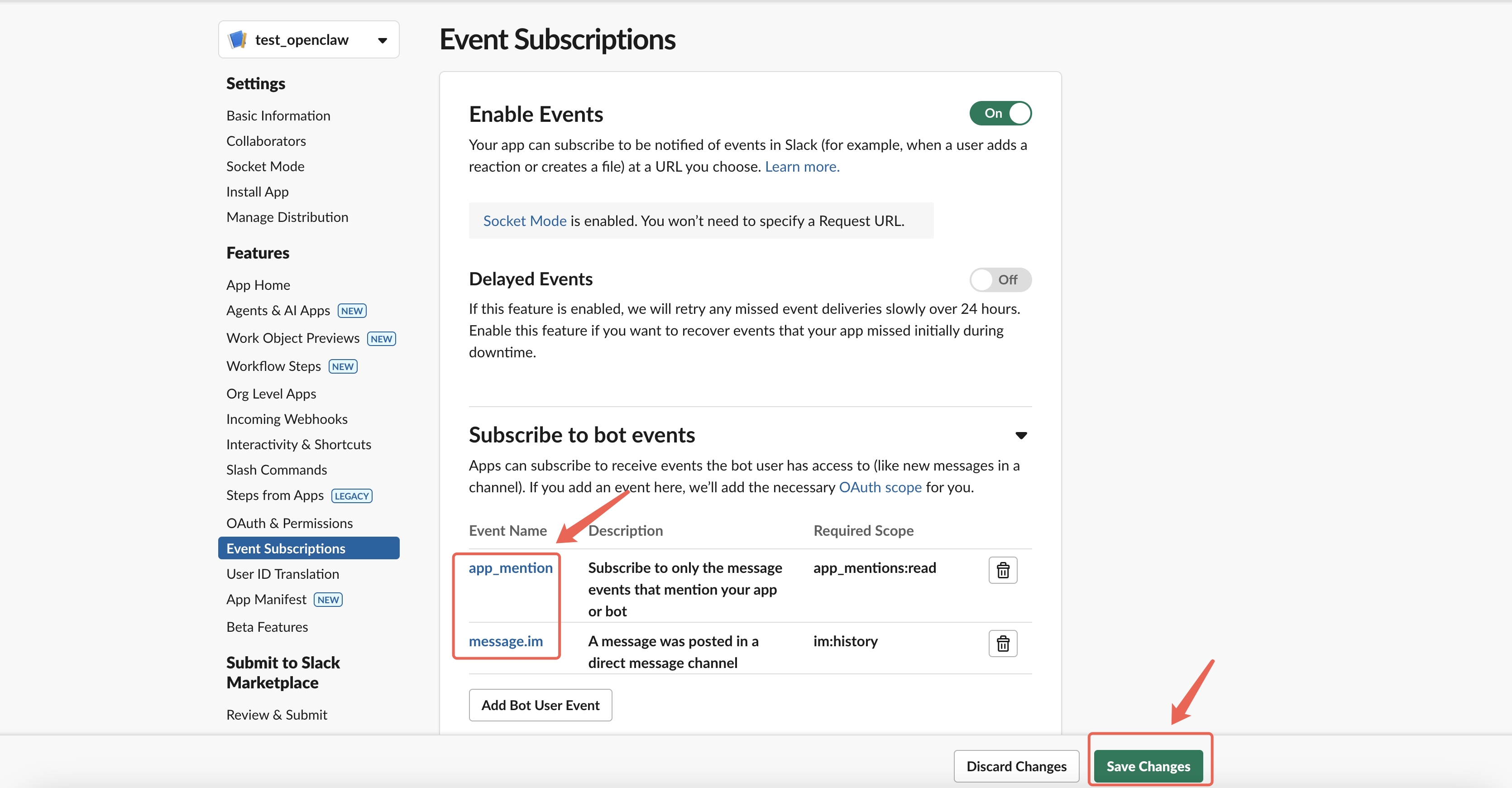
Step 5: Enable Event Subscriptions
- In the left sidebar, go to Event Subscriptions
- Toggle Enable Events on
- Expand Subscribe to bot events, click Add Bot User Event, and add:
| Event | Purpose |
|---|---|
message.im | Receive direct messages |
message.channels | Receive messages in public channels |
message.groups | Receive messages in private channels |
app_mention | Receive @mentions |
- Click Save Changes at the bottom
Step 6: Configure App Home
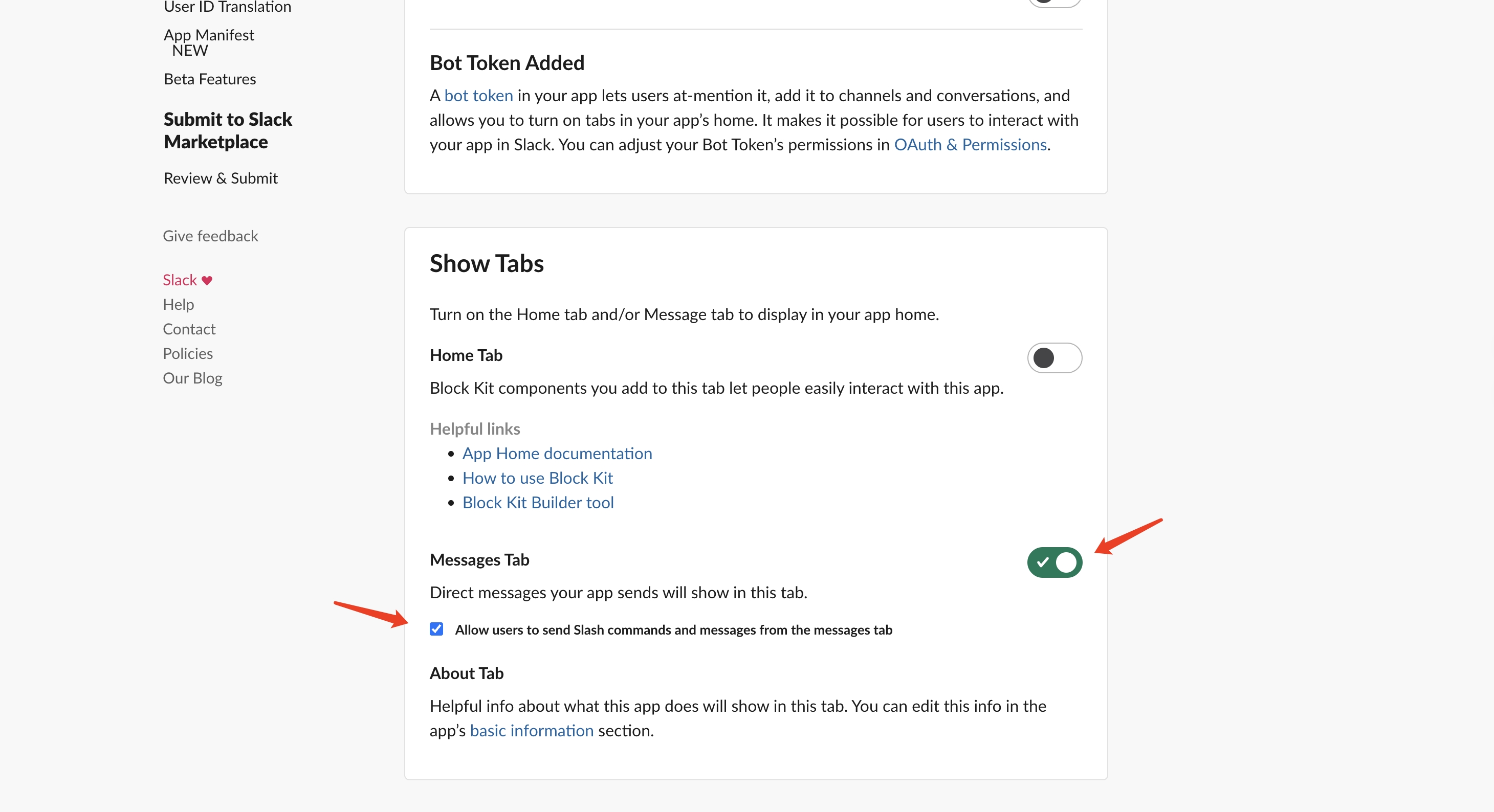
- In the left sidebar, go to App Home
- Under Show Tabs:
- Check Messages Tab
- Check Allow users to send Slash commands and messages from the messages tab
This enables users to send direct messages to your bot in Slack.
Step 7: Send Tokens to Your AI Employee
Once the Slack App setup is complete, simply send both tokens to your AI employee in chat to finish the connection. For example:
Bot Token: xoxb-xxxxxxxx App Token: xapp-xxxxxxxx
Your AI employee will automatically configure the Slack channel connection.
Step 8: Start Chatting
- In Slack, search for your Bot name or find it in the Apps list
- Click to start a DM conversation — AI employee responds immediately
- To use in a channel, invite the Bot by typing
/invite @BotNamein the channel - @mention your Bot to trigger responses in the channel
- Deployment complete!
Tip: Slack Bot supports both DMs and channel @mentions. You can use it across multiple channels simultaneously.
Slack FAQ
| Issue | Solution |
|---|---|
| Bot not responding | Re-send both Bot Token and App Token to your AI employee in chat |
| Bot not visible in Slack | Ensure the App is installed to Workspace (Step 4) and App Home is configured (Step 6) |
| Bot not responding in channels | The Bot must be invited to the channel first using /invite @BotName |
| Token regenerated after scope change | Reinstall the App to Workspace after any scope modification, then update tokens in Dashboard |
| Cannot send DMs to Bot | Confirm Messages Tab is enabled in App Home settings |
Option F: WhatsApp Deployment
Estimated time: ~5 minutes
Note: WhatsApp connects via QR code scanning (linked device), similar to using WhatsApp Web. No API keys, developer accounts, or app configuration are needed — just a phone with WhatsApp installed.
Use a Dedicated WhatsApp Account
Please use a newly registered, dedicated WhatsApp account for the bot — do not use your personal WhatsApp account. The connected account will serve exclusively as the bot's number.
No credentials are required. You only need:
| Item | Description |
|---|---|
| COCO AI Employee | An existing instance in COCO Dashboard |
| WhatsApp Account | A phone with WhatsApp installed and logged in |
| ~5 minutes | Time to complete deployment |
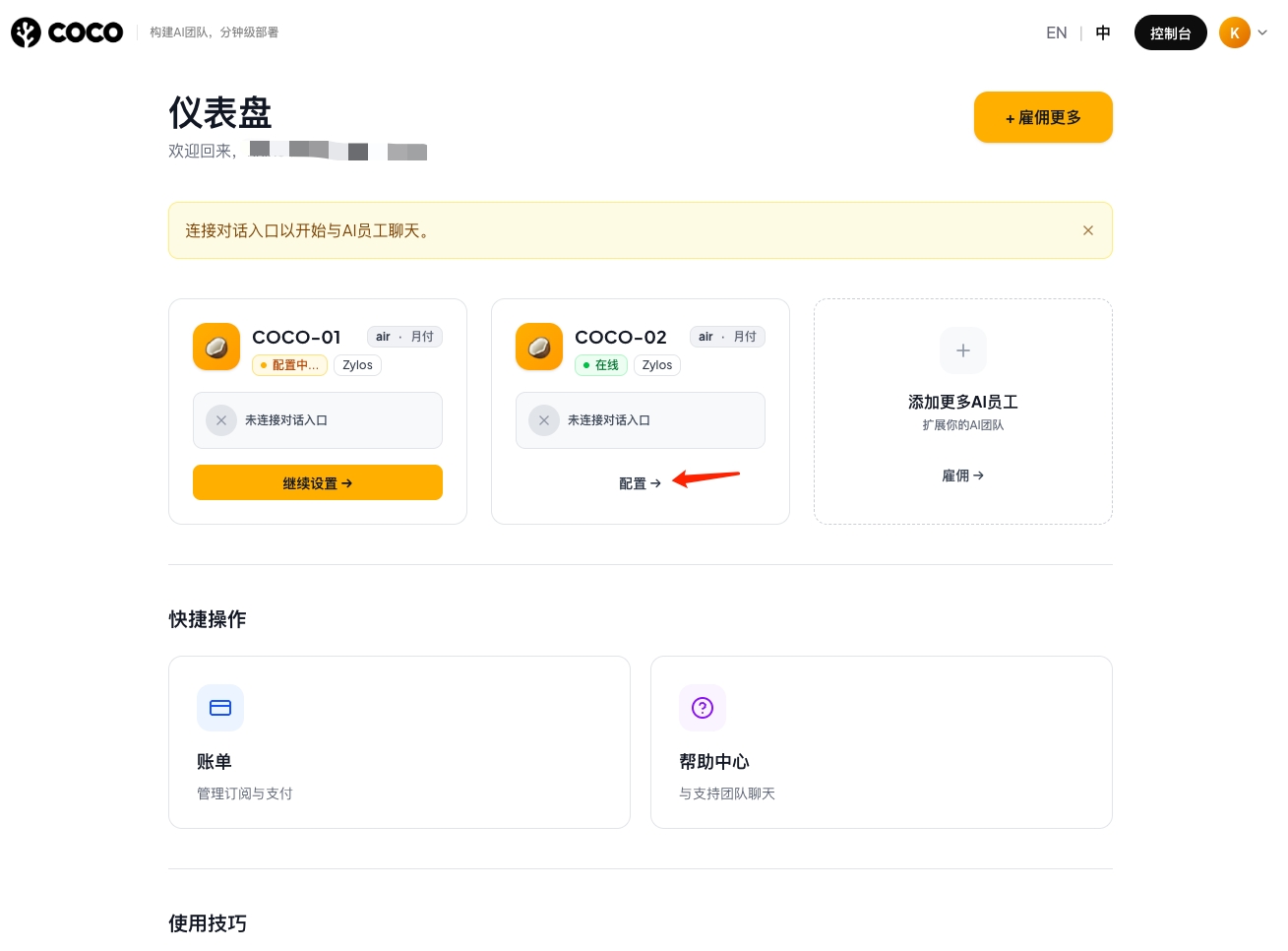
Step 1: Create an AI Employee and Enter Configuration Page
- Log into COCO Dashboard
- Create a new AI employee or select an existing instance
- Click Configure → on the employee card to enter the instance detail page
Step 2: Click WhatsApp "Connect" and Wait for QR Code
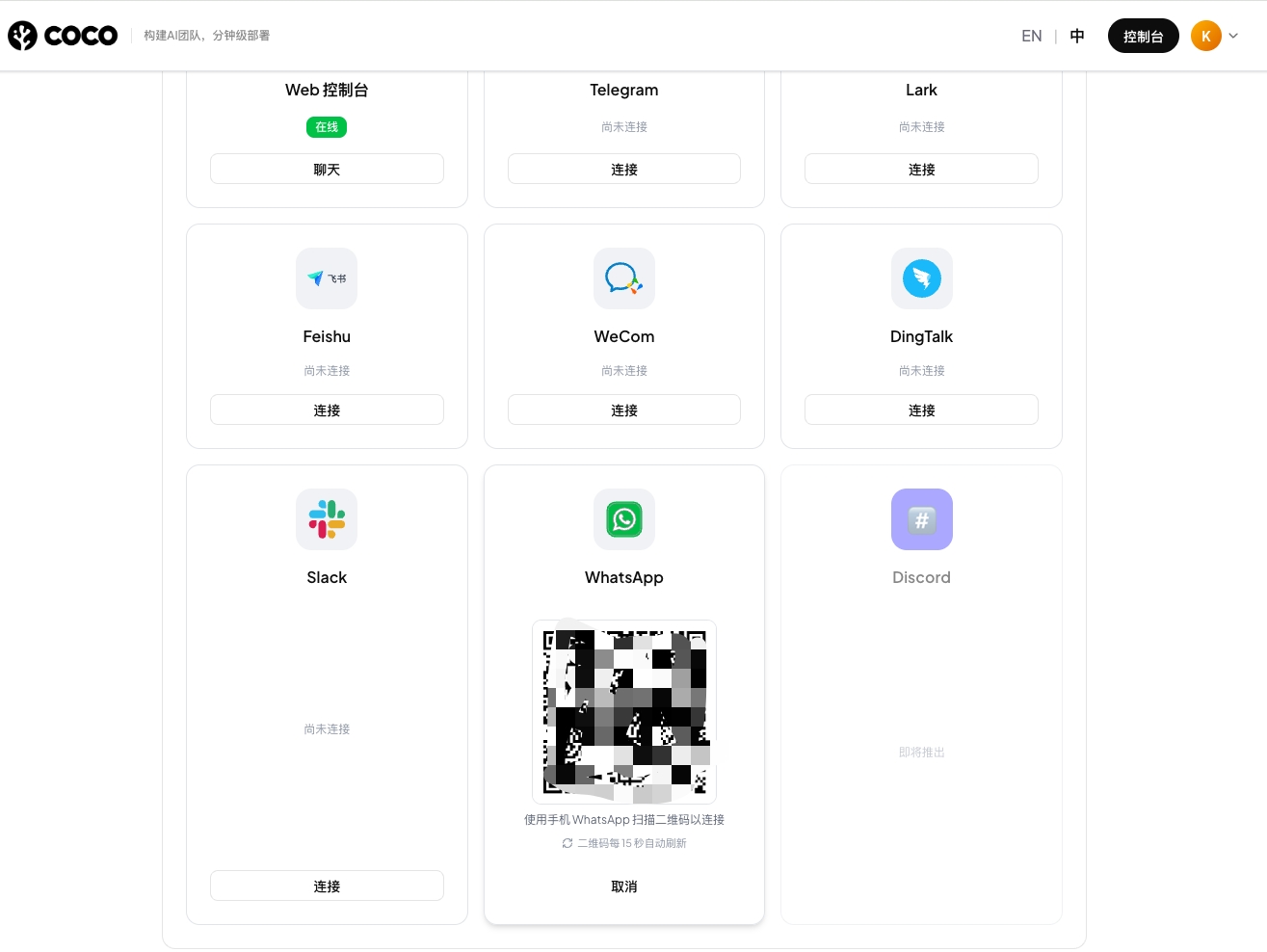
- In the channel list on the instance detail page, find the WhatsApp card
- Click the Connect button
- The system will prepare a WhatsApp session in the background — the QR code takes ~30 seconds to generate, please be patient
- Once generated, the QR code refreshes automatically every 15 seconds
Important: Do not close the page or click repeatedly while waiting — this may trigger duplicate requests.
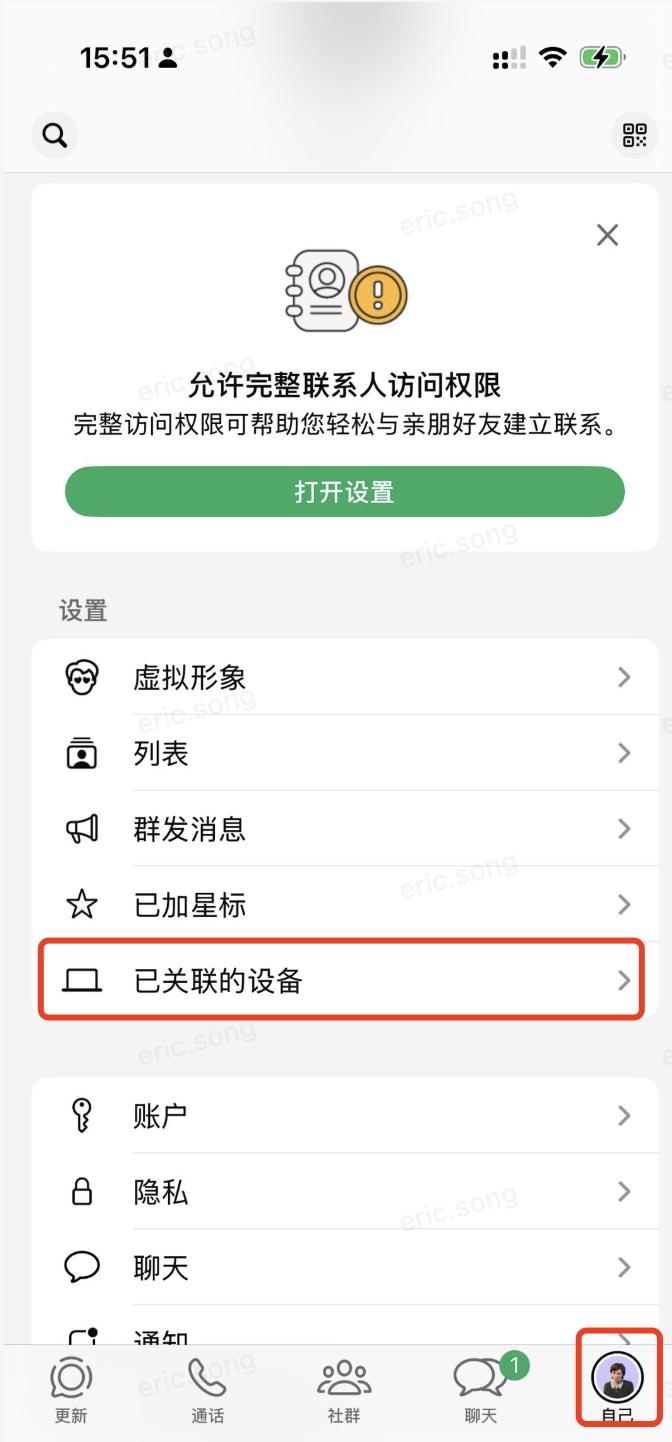
Step 3: Open WhatsApp on Your Phone → Linked Devices
- Open WhatsApp on your phone
- Tap Me (profile icon) in the bottom-right corner
- In the settings list, tap Linked Devices
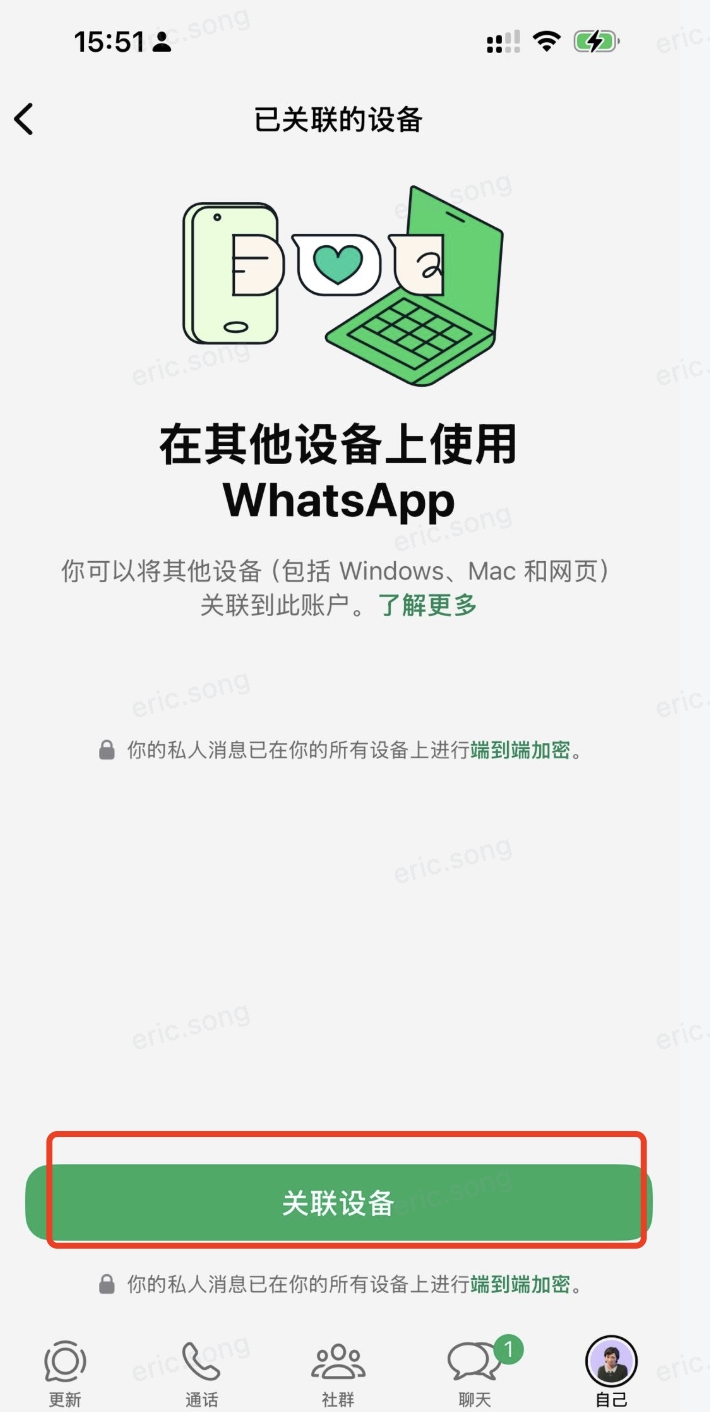
Step 4: Tap "Link a Device" and Scan the QR Code
- On the "Linked Devices" page, tap the Link a Device button at the bottom
- Your phone's camera opens — point it at the QR code displayed on the Dashboard in Step 2
- Wait a few seconds for the connection to complete
Tip: If the QR code has expired, the Dashboard will automatically refresh it. Scan the latest QR code displayed.
Step 5: Verify Connection and Manage Chat Permissions
- After successful scanning, the Dashboard automatically detects the connection — the WhatsApp card shows Connected
- Deployment complete! You are now the Owner (administrator) of this WhatsApp bot
Verify the Bot Is Working
Search for your own WhatsApp account and send yourself a message — the AI employee will reply automatically. This confirms the connection is live.
Managing Who Can Chat with the Bot
By default, only the Owner can chat with the bot. To allow others to interact, configure access via two modes — just send a natural language instruction to the bot:
Allowlist Mode — Only specified phone numbers can chat:
Send to bot:
Enable allowlist mode, add +1 555xxxx888 to the list
The bot will update its configuration automatically. Only users on the allowlist can initiate conversations.
Open Mode — Anyone can chat:
Send to bot:
Enable open mode, anyone can DM you
The bot will open chat access to all users.
Note: WhatsApp linked devices may disconnect automatically if the phone is offline for an extended period. If disconnected, return to the Dashboard and scan the QR code again to reconnect.
WhatsApp FAQ
| Issue | Solution |
|---|---|
| QR code takes a long time to appear | The first generation may take 30-60 seconds — this is normal. Do not close the page |
| QR code expired before scanning | The QR code auto-refreshes every 15 seconds. Use the latest one displayed |
| "Already in progress" error | A previous QR request is still running. Wait a moment and it will resolve automatically |
| Others can't message the bot | By default only the Owner can chat. Enable Allowlist or Open mode to grant access |
| WhatsApp disconnected after some time | Phone was offline too long. Reconnect by scanning QR code again from the Dashboard |
| Want to disconnect WhatsApp | Click the Disconnect button on the WhatsApp card in the instance detail page |